> For the complete documentation index, see [llms.txt](https://help.wegic.ai/llms.txt). Markdown versions of documentation pages are available by appending `.md` to page URLs; this page is available as [Markdown](https://help.wegic.ai/tips-and-tricks/restore-version.md).
# Restore Version
Wegic lets you preview and restore earlier versions of your website at any time.
You can return to a previous state to undo recent changes or explore a different direction.
Restore Version lets you experiment freely without worrying about losing your work.
## How to Restore a Version
Restore from an AI response
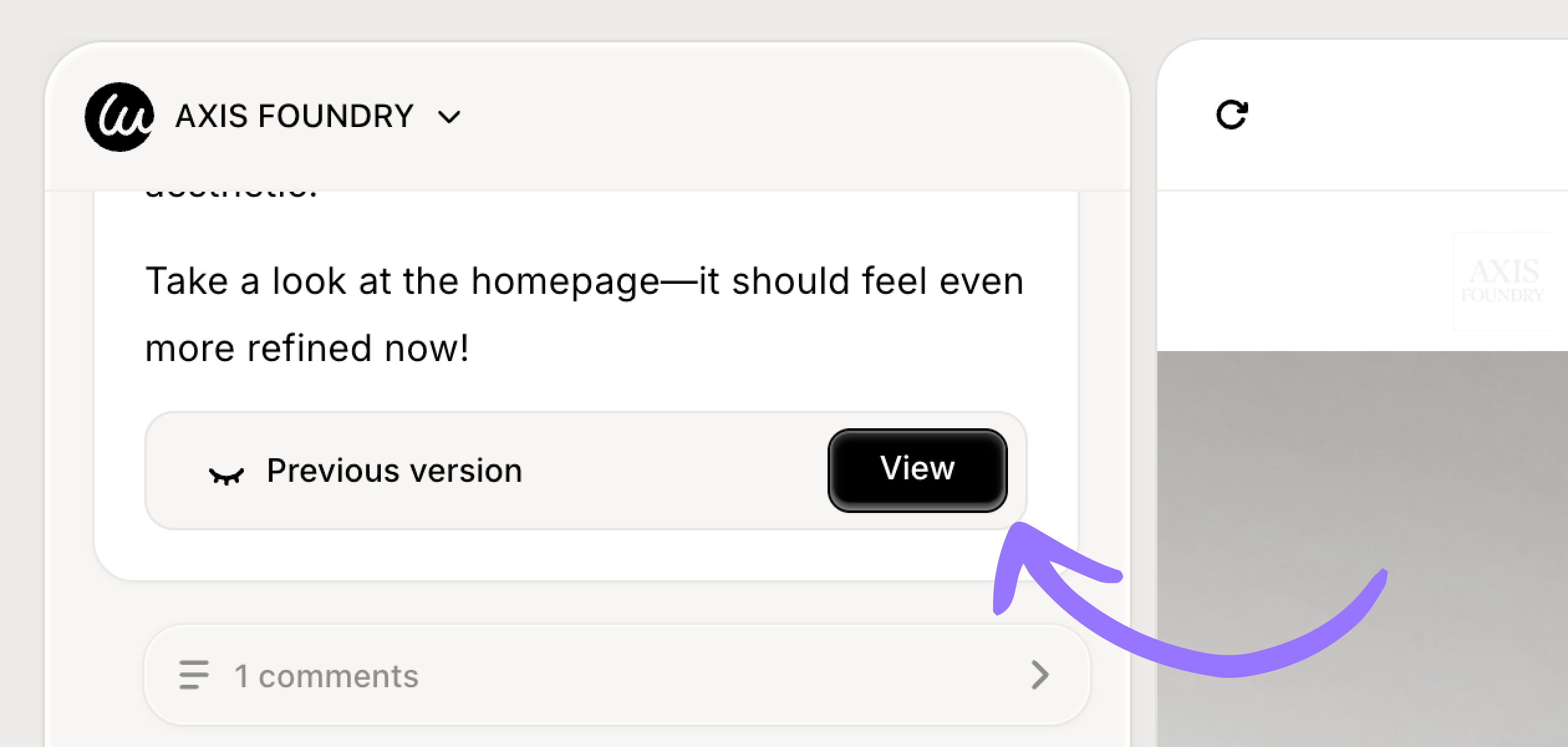
1. Find the AI response you want to revert to in the chat.
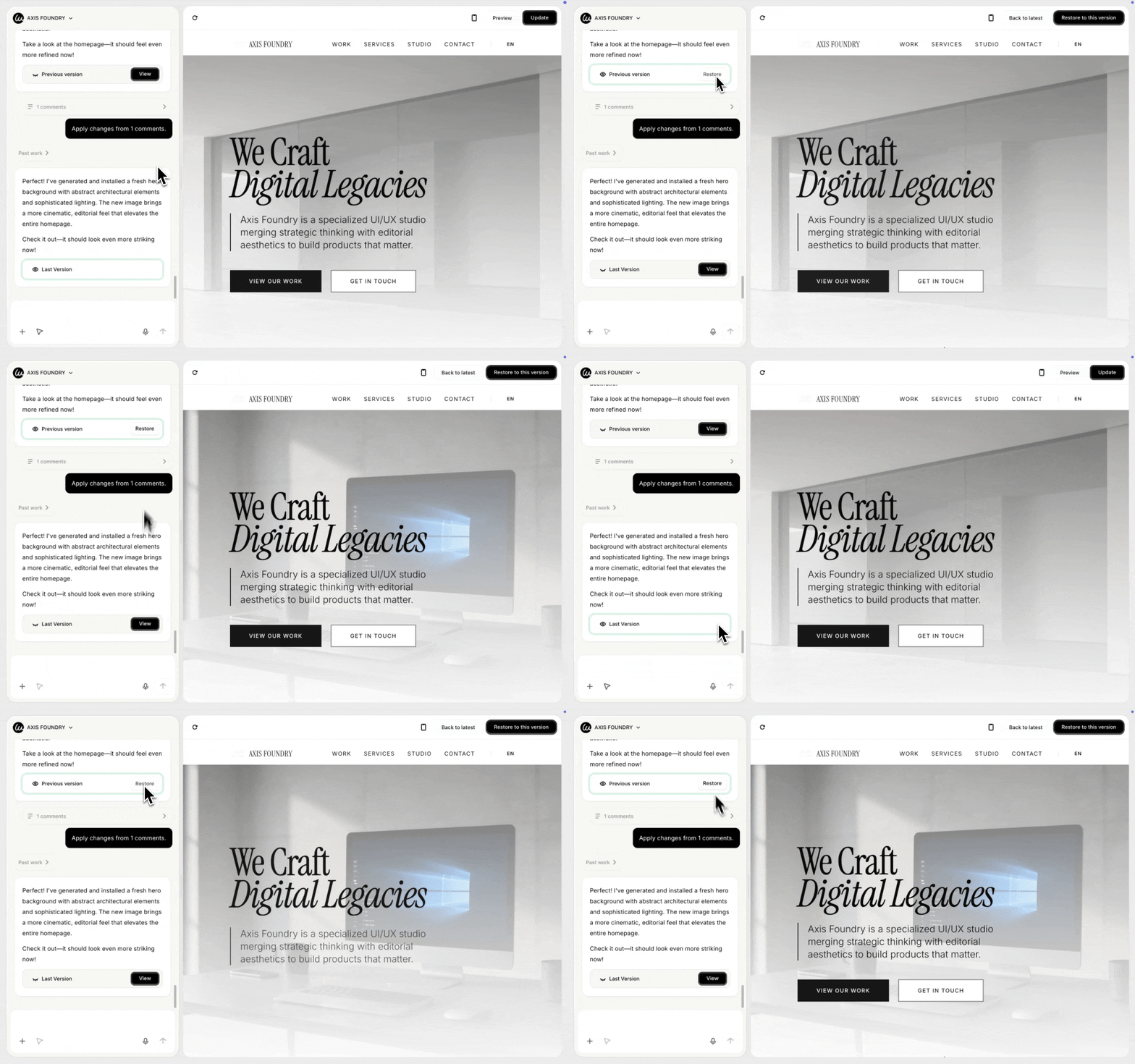
2. Click **\[View]** Previous Version
3. Preview the version on the right side
4. If you want to restore it, click **\[Restore]**, or click \[Restore to this version] at the top right
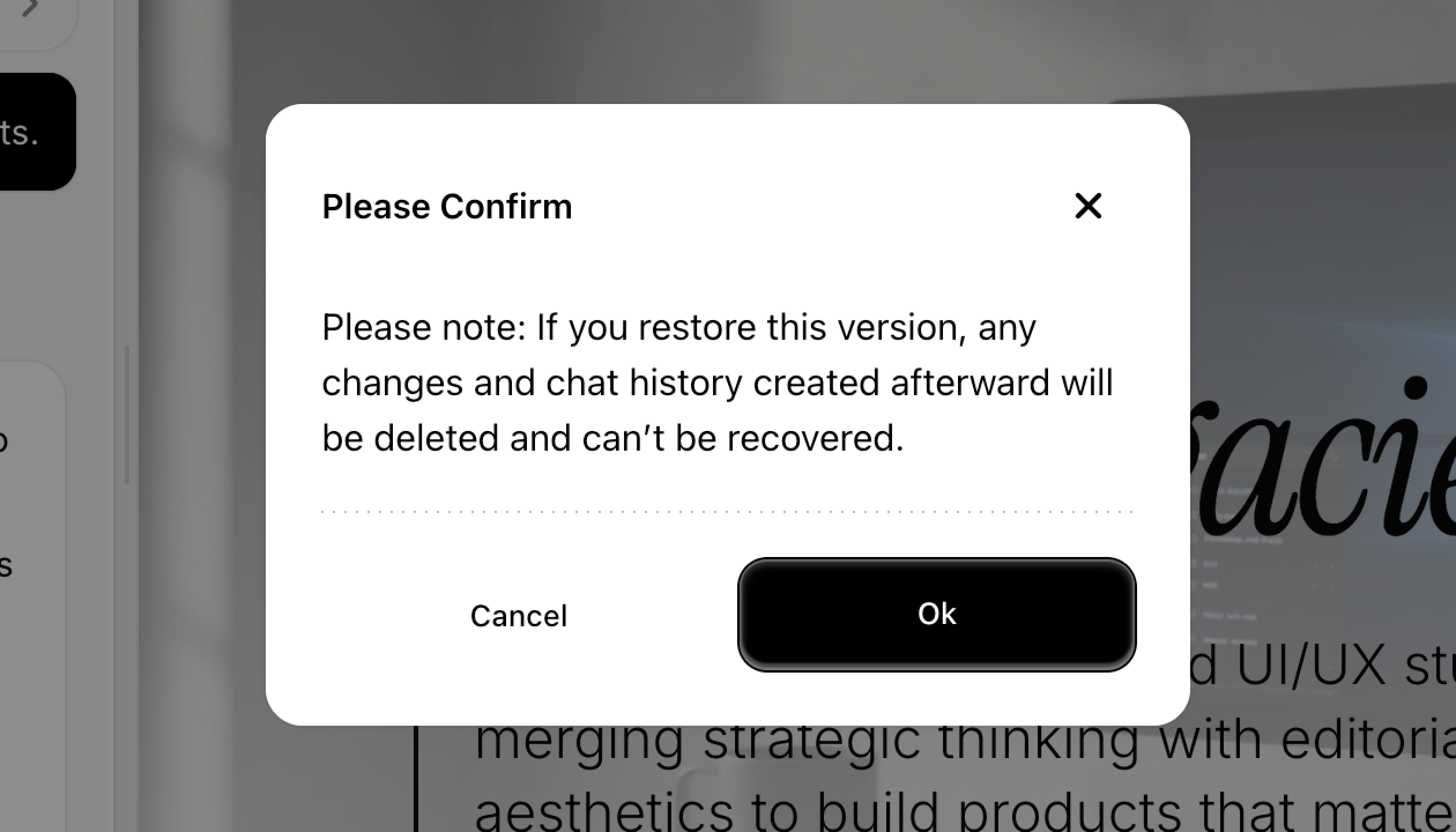
5. **Important:**
Restoring a version will delete all versions created after that restored point.
Click **\[OK]** to continue restoring.
6. Wait a few seconds. Your website will revert to that version.
## FAQ
Why does the website look the same before and after restoring a version?
Sometimes, the AI changes a page other than the homepage when you restore a version.
To check this, use the preview window on the right side to scroll or switch to other subpages.
The restored version may be visible there instead of on the homepage.
Why does some AI messages not show [View] previous version button?
This usually happens for one of these reasons:
**1. Not every AI message creates a new website version.**
The AI message is part of a normal conversation, such as confirming requirements or asking questions
In this case, no website changes are made, so there is no version to restore
**2. The button did not load correctly.**
If you think a version should be there but don’t see the button, try refreshing the page to reload it.